Screens and players
Pair in seconds. Manage from anywhere.
Add one screen or hundreds, see what each one is showing, and fix problems without a site visit. Players keep playing when the network does not.
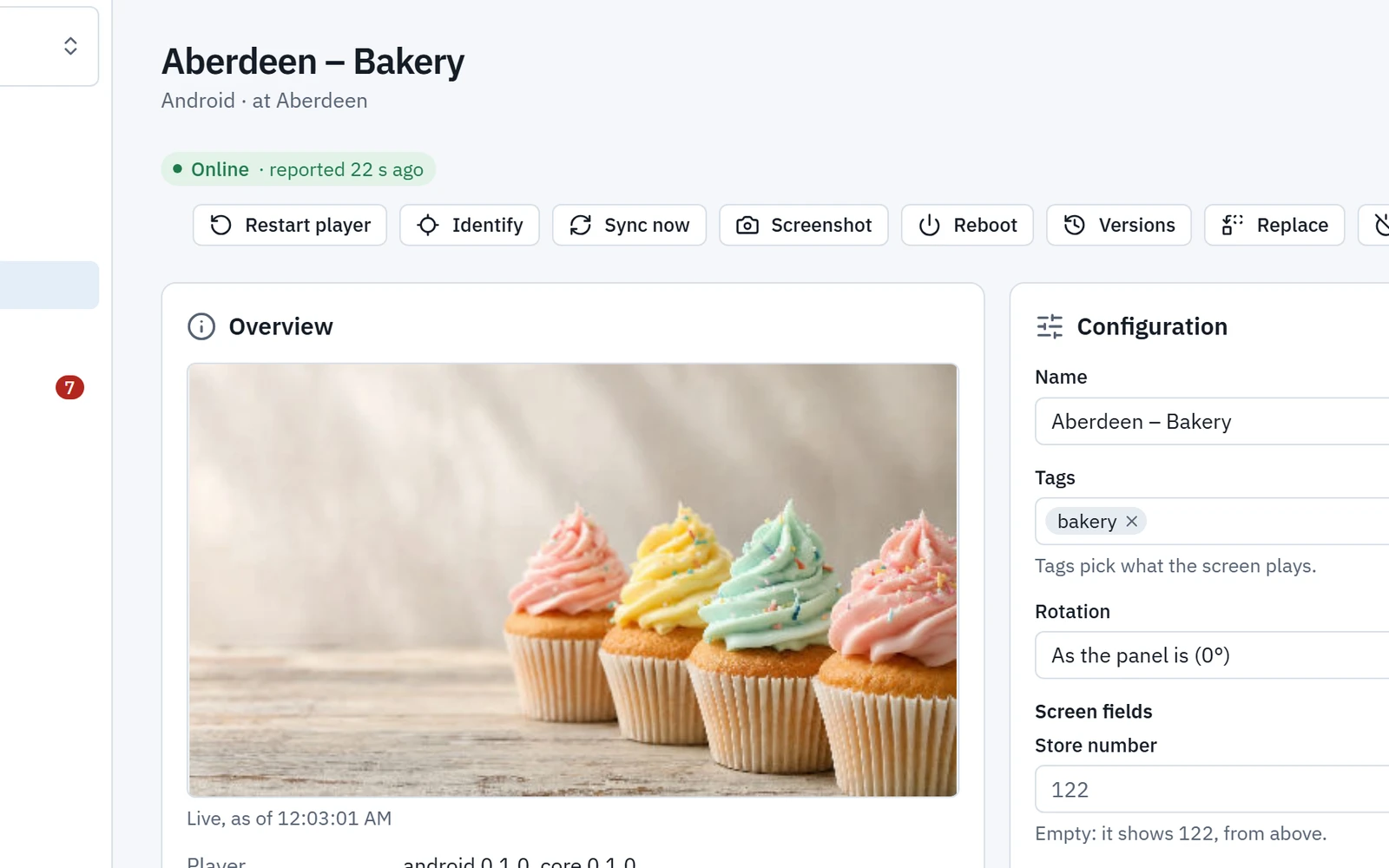
Pairing
One screen, or hundreds
Pair a screen by typing the code it shows, or scan its QR code with a phone and tap once.
- Enrollment tokens with a QR code and a deployment file, with optional Wi-Fi and proxy settings, for install sheets. Each has a limit on uses, an expiry and optional auto-approval.
- Installer mode is a phone page for field teams: pick the site, scan each screen’s QR code, done. It works without signal and sends the pairings when the phone is back online.
- Replace failed hardware: the new box takes over the old one’s name, place and content, and the old hardware is cut off for good.
New screens wait in an approval inbox unless you choose auto-approval.
Choose a player and set up a screenThe fleet
Every screen, at a glance
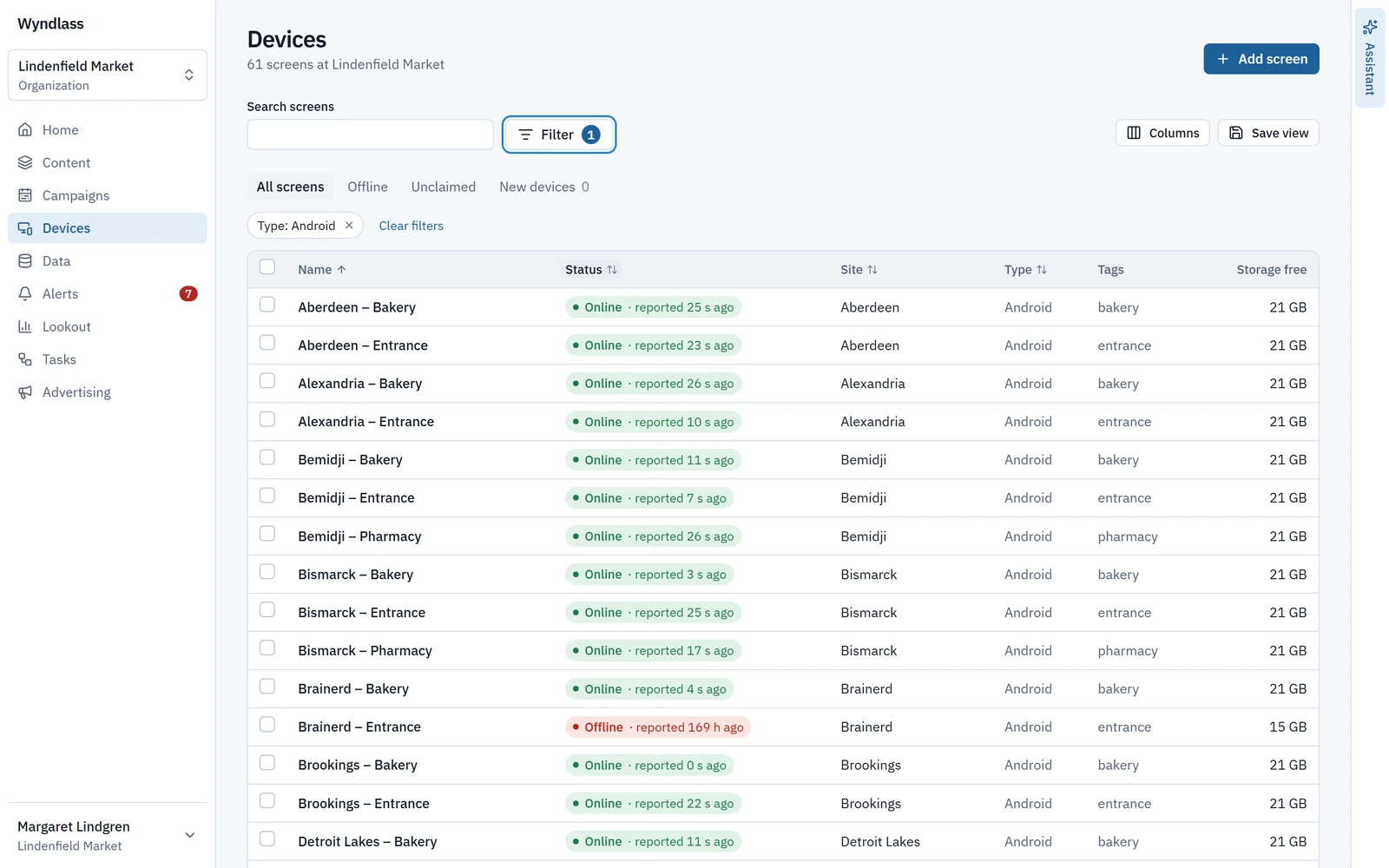
See the whole fleet in one list, and everything about one screen on its own page.
- Built-in views for all, offline, unclaimed and new screens, saved views, filters by type, venue type, city and maintenance due, and telemetry columns.
- A screen’s page shows a live view refreshed every 30 seconds, its hardware, telemetry over a day, a week or 30 days with critical levels marked, what plays now and next, its sensors, alerts and maintenance log.
- Home shows every site on a map, coloured by health, beside a list worst-first.
- Organise screens in a tree of places, each with its time zone and languages, and add your own fields, such as a store number.
Remote control
Fix it without a site visit
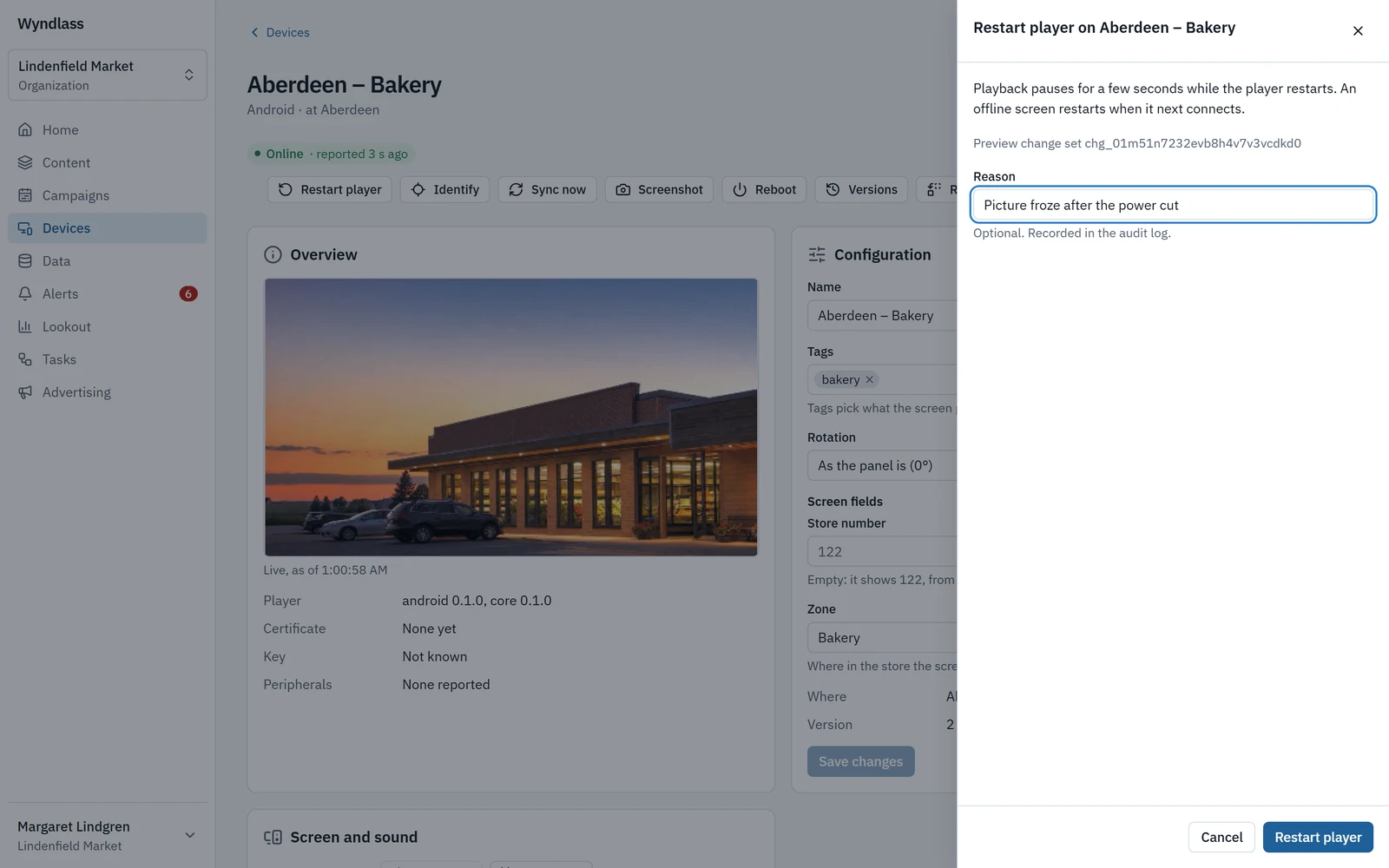
Identify, sync, screenshot and restart any screen from the CMS. Commands keep trying for 24 hours and never run twice.
- Reboot and screen on and off where the player manages the box: Android in kiosk mode and the Amazon Signage Stick.
- On the Amazon Signage Stick, also muting the TV, updates, a short recording of the screen, clearing the cache and a factory reset.
- Deactivate a screen to take it out of service: it shows a notice and plays nothing, and keeps its name, place, settings and content for when it returns.
- A settings page on the player itself, locked by a PIN your organization sets. The CMS records what was done there.
Every command is previewed and confirmed, and recorded in the audit log.
Players
Built to keep playing
Players run on signage hardware, keep playing offline and report what they played.
Android
Android 8.0 or later, in kiosk mode, set up by QR code, zero-touch enrollment or your EMM, with native, gapless video and rotation.
Amazon Signage Stick
Managed through Amazon’s remote management, with TV power and mute over HDMI-CEC, rotation and Wi-Fi from a deployment file.
BrightSign, Linux and Windows
Players for BrightSign and Linux are in early access, and a player for Windows is coming.
Keeps playing offline
The last good content plays first after a restart. New content downloads in full before a screen switches, and content stays valid for 7 days offline.
Signed and verified
Every content package is signed and every file checked. Each screen has its own key and certificate, and can be revoked.
Screens and players: common questions
Which players does Wyndlass support?
Android 8.0 or later, from Google Play or our download page, and the Amazon Signage Stick. Players for BrightSign and Linux are in early access, and a player for Windows is coming.
What happens when a screen loses its connection?
It keeps playing. Content stays valid for 7 days without a connection; after that, the screen keeps playing and reports itself as stale. It never goes dark, and it sends its proof of play when it reconnects.
Can installers pair screens without signal?
Yes. Installer mode works without signal on a phone and sends the pairings when the phone is back online.
How do we replace a broken player?
Pair the new box as a replacement. It takes over the old one’s name, place and content, and the old hardware is cut off for good.
See Wyndlass on your screens
Access is by invitation during launch. Tell us about your network and we will reply by email.